Vivino Ice Packs
Ice Packs are a great opportunity to serve customers in warm locations as they can keep wines at an acceptable temperature during shipping. Vivino offers the possibility to include Ice Packs with an order. The Ice Pack can be selected by a customer during the Vivino checkout.
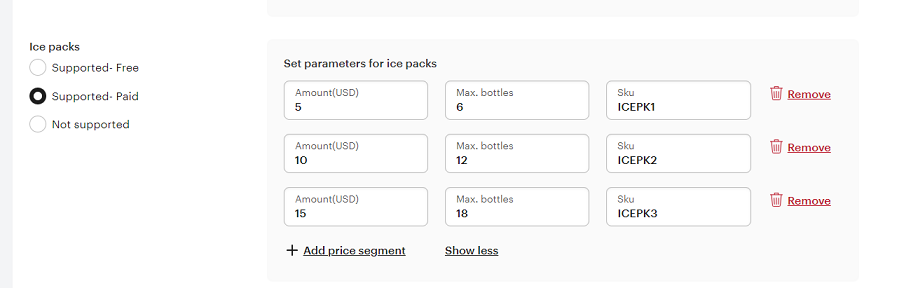
To enable support for Ice Packs, you need to contact your Vivino representative. Together you can decide which Ice Packs should be made available. You need to make decisions on the price and how many bottles each of the Ice Packs that you are offering will be used for. This information will be entered in the Vivino environment as shown here:
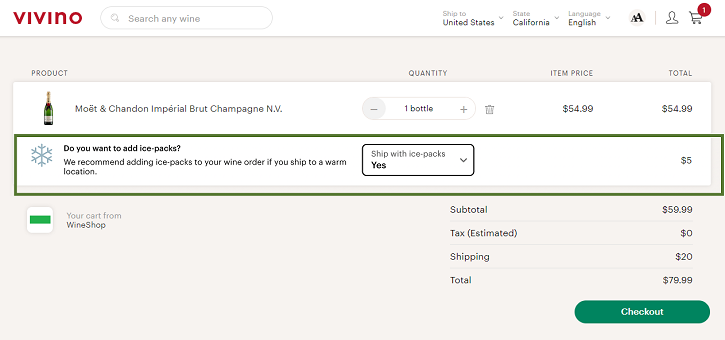
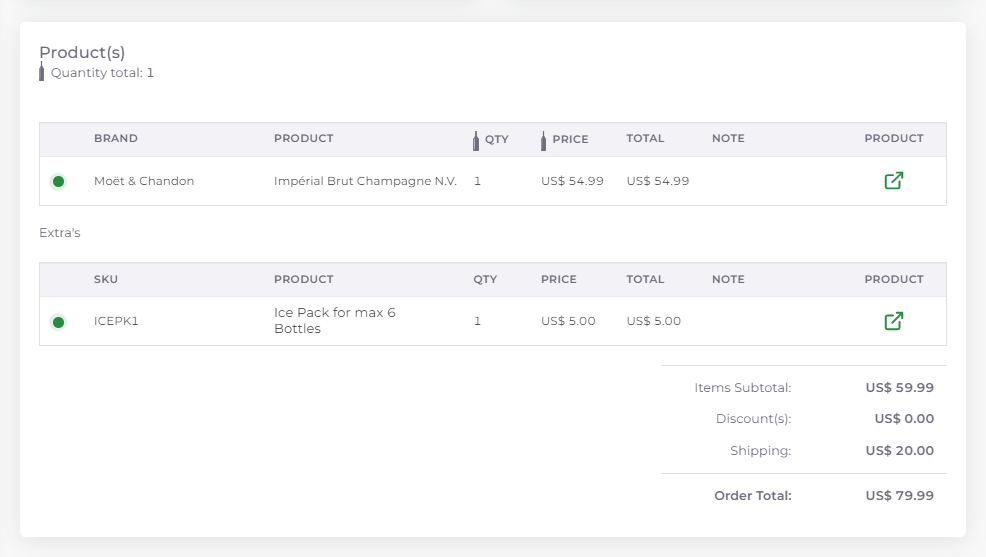
Once Ice Packs have been enabled by Vivino, your customer is presented with an option to add an Ice Pack during the checkout. Vivino will determine which Ice Pack is matching the number of bottles in the order. Multiple Ice Packs may be included. Below is an example order for a single bottle of champagne. Let’s assume the customer will be ordering an Ice Pack:
If your customer orders an Ice Pack, we need to know which of the products in your web shop should be included in the order. For this, we need you to create a mapping from the Ice Pack SKUs as defined in the Vivino environment to the products in your web shop. This is done in a few easy steps:
In the Actenzo Merchant Dashboard, in the menu on the left, under ‘Configuration’ you will find ‘Vivino Ice Packs’:
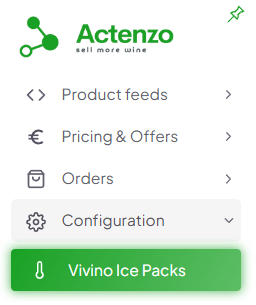
(if this menu is not available then please contact us on [email protected])
Clicking this menu opens the screen where you can configure the mapping for your Ice Packs:

Click Add to add a new Mapping:
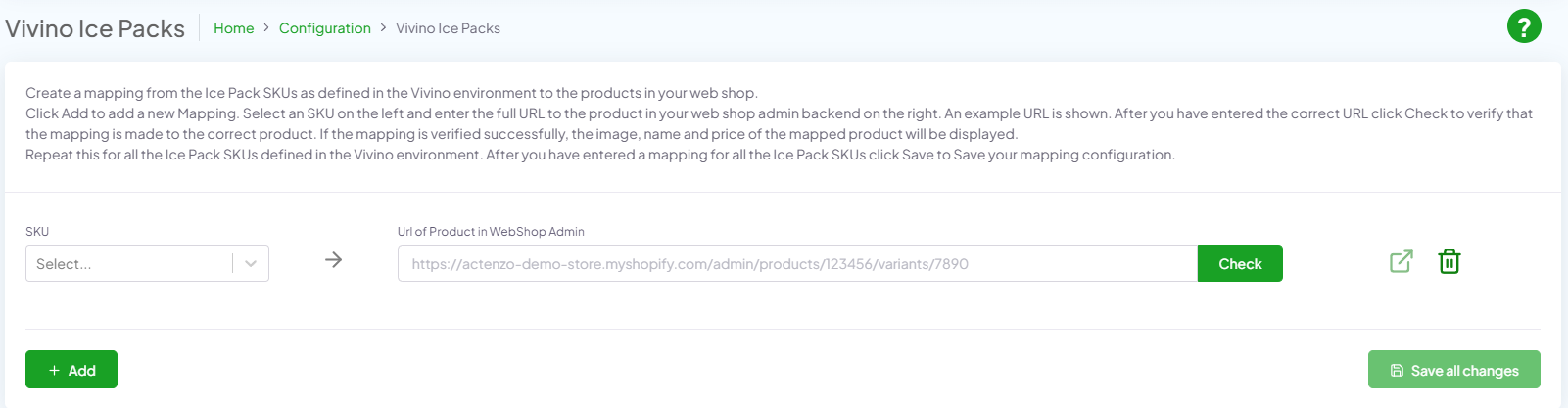
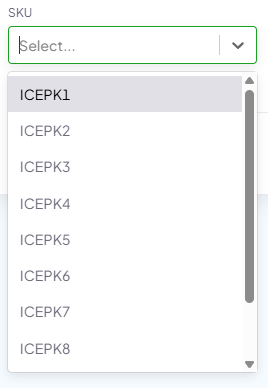
Select an SKU (as defined in the Vivino environment) on the left. If needed you can type in an SKU that is not in the list:
And enter the full URL to the product in your web shop admin backend on the right. An example URL is shown:

After you have entered the correct URL, click Check to verify that the mapping is made to the correct product. If the mapping is verified successfully, the image, name and price of the mapped product will be displayed:

Following the same steps as above, continue adding mappings for the rest of the Ice Pack SKUs that are defined in the Vivino environment:
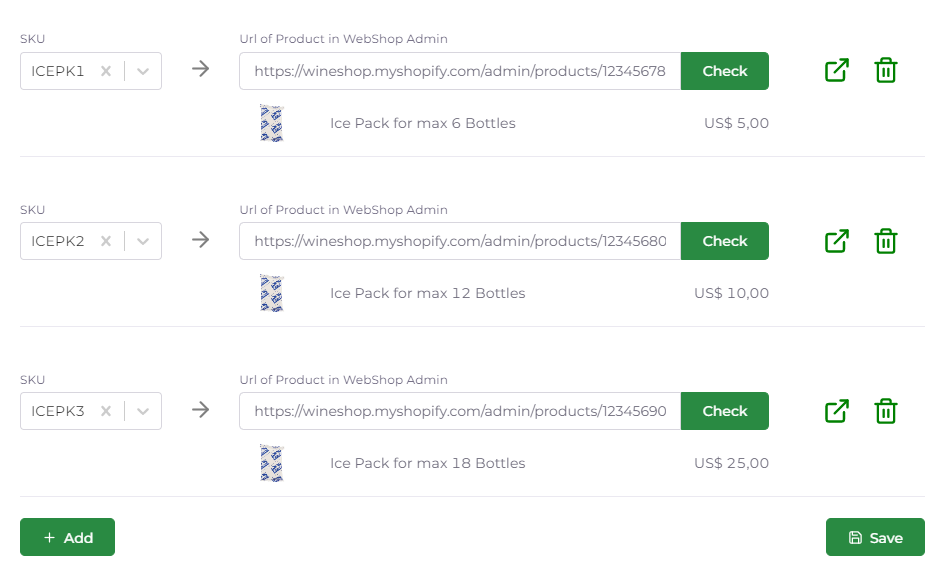
If you want to go to the mapped product in your web shop admin panel you can click the link icon:

If you want to remove a mapping you can do so by clicking the trash can icon on the right:

When the mappings for all the SKUs from the Vivino environment are completed click the ‘Save’ button to save your configuration:
After you have set up your mapping, any Ice Packs that are included in the order will be visible on the order details page in the Actenzo Merchant Dashboard:
And the Ice Pack(s) will be included in the order in your web shop.